

Logitech MX Master 4 mouse review: feedback
01.10.25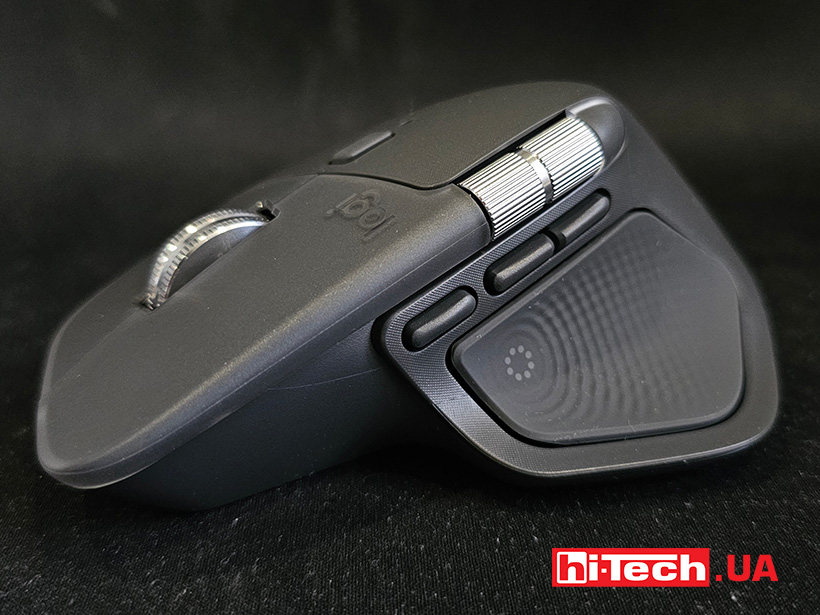
Logitech has released a new version of its flagship mouse. The Logitech MX Master 4 not only boasts excellent ergonomics, but also features a number of new additions to the buttons and their functions. The Action Ring supports programming of various actions and also features tactile feedback. We’ll share more details about the mouse and our impressions below.
Design and Layout
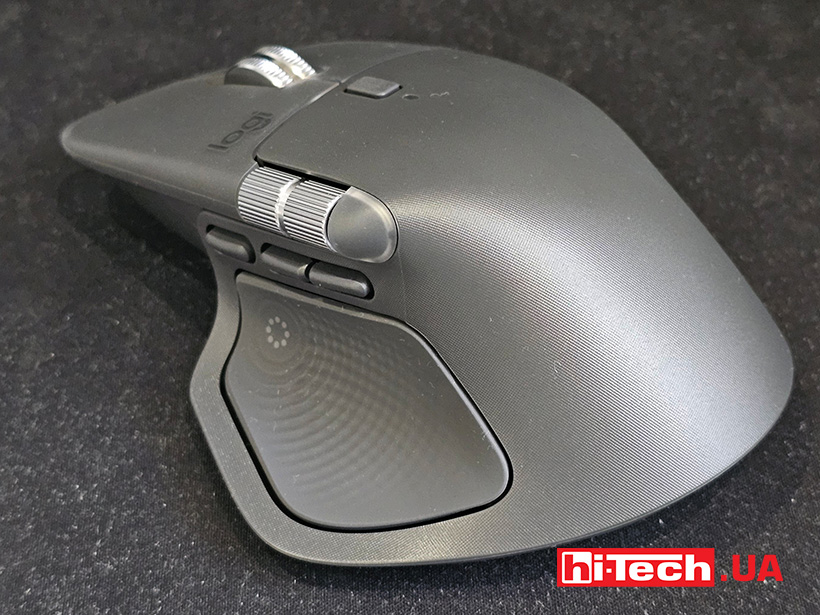
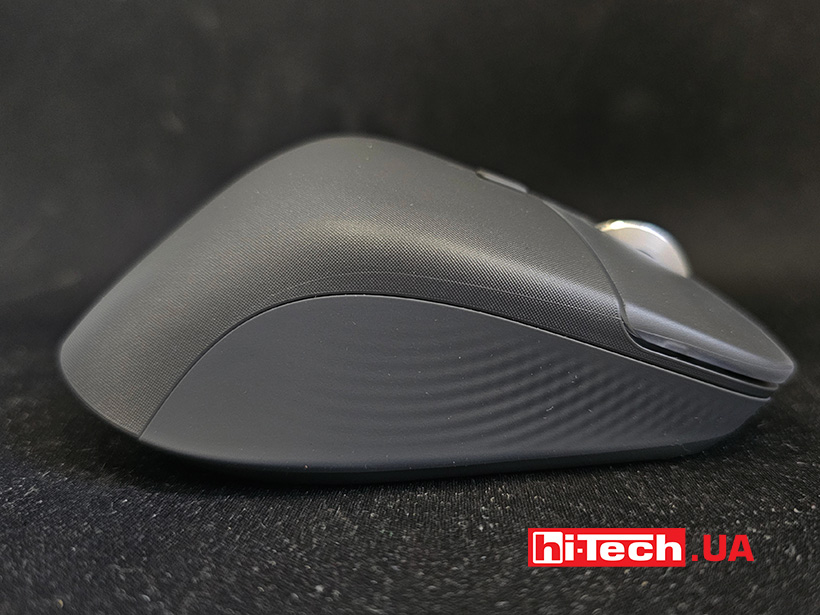
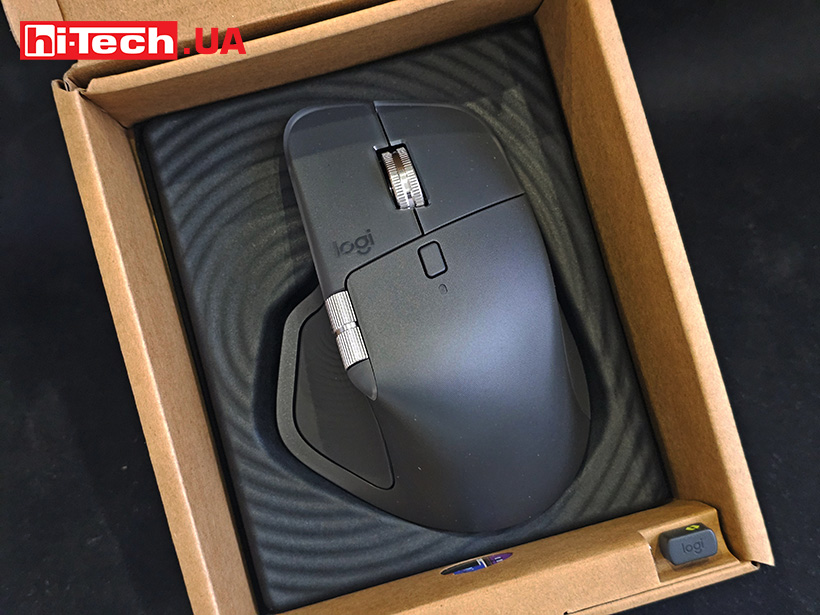
The Logitech MX Master 4 mouse has the typical dimensions and shape of the line. This large model features a noticeably upward curved back. The contours are anatomically shaped, and the mouse is comfortable from the first minute of use.
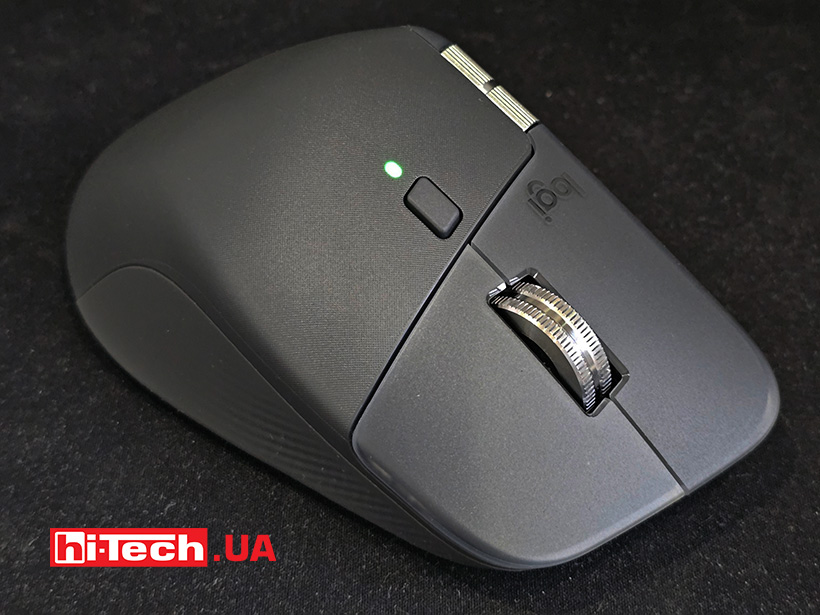
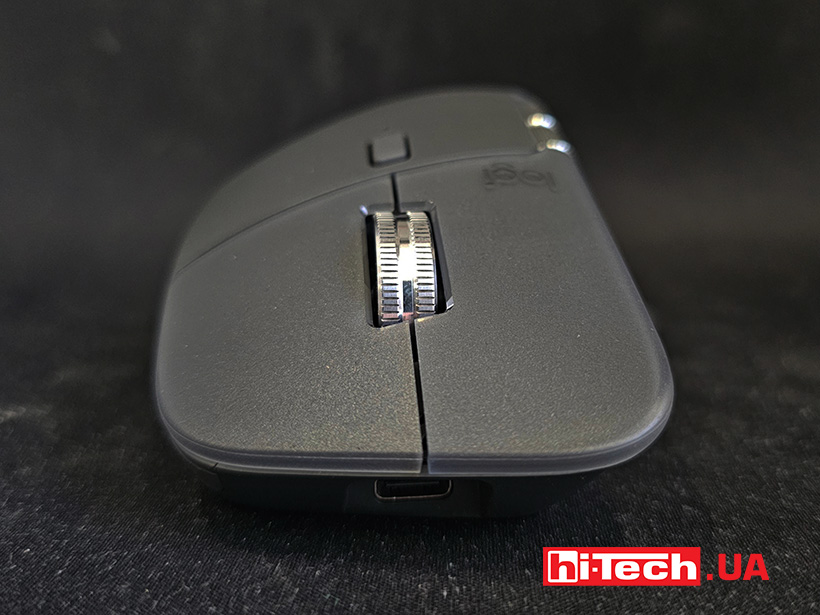
The main buttons, while not taking up much of the top area, rest comfortably under your fingers. Above them is a small mode switch button. The mouse features a MagSpeed scroll wheel with an inertial mechanism. It can scroll up to 1000 lines per second.
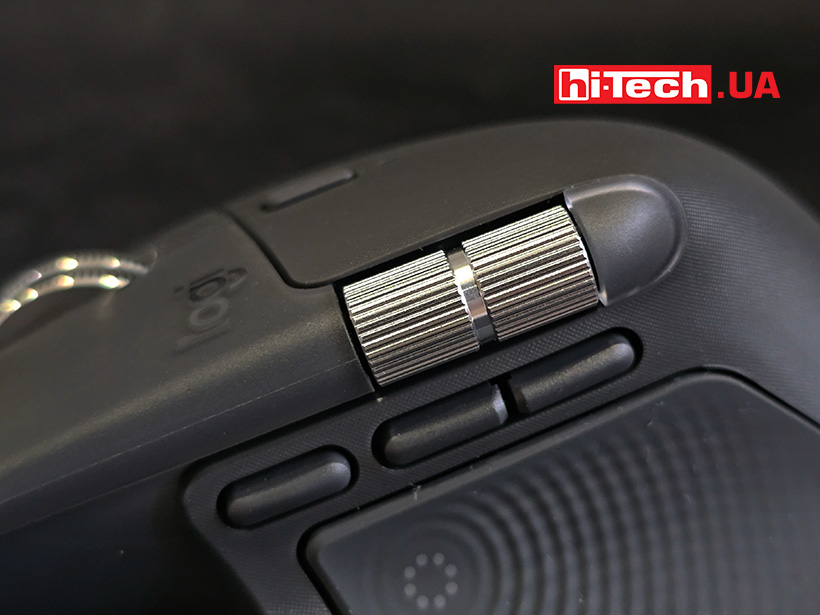
The second wheel for side scrolling or zooming, like the other keys, is designed for thumb control. Additional “forward” and “back” buttons, by default, are located next to a third programmable key. Pressing it allows you to control the computer using typical mouse gestures.
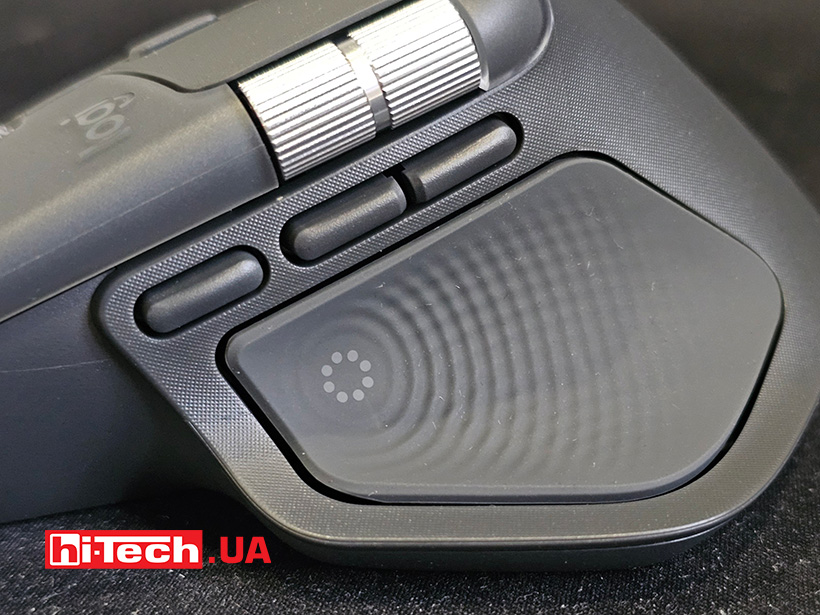
Below, on the bottom, is a new Action Ring button. When pressed, it displays a carousel of various functions. These functions are available in Windows Explorer, Photoshop, and Excel. You can rearrange the icons in the menu and change their order. And to add a wow factor, crossed out, and intuitiveness, these commands can be accompanied by vibration. Yes, the mouse has tactile feedback. It’s difficult to assess the practical significance, but it’s intriguing.
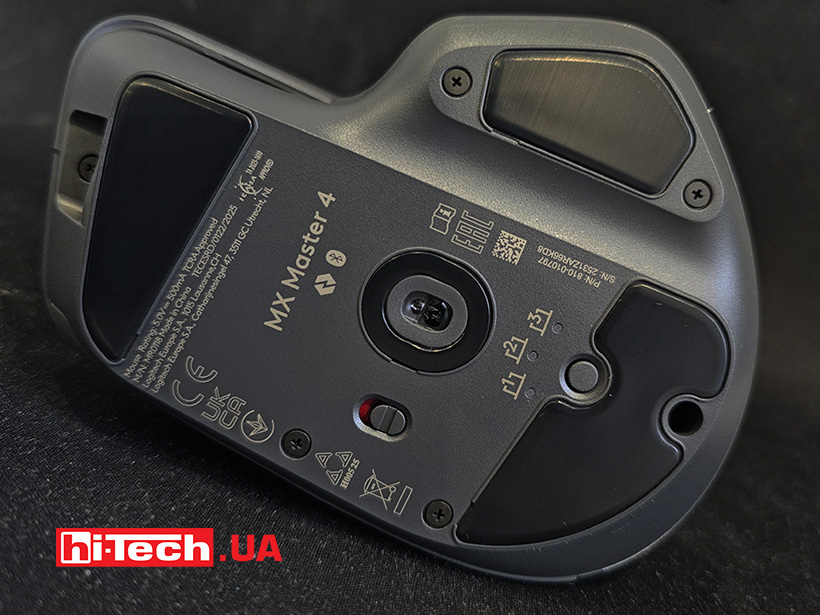
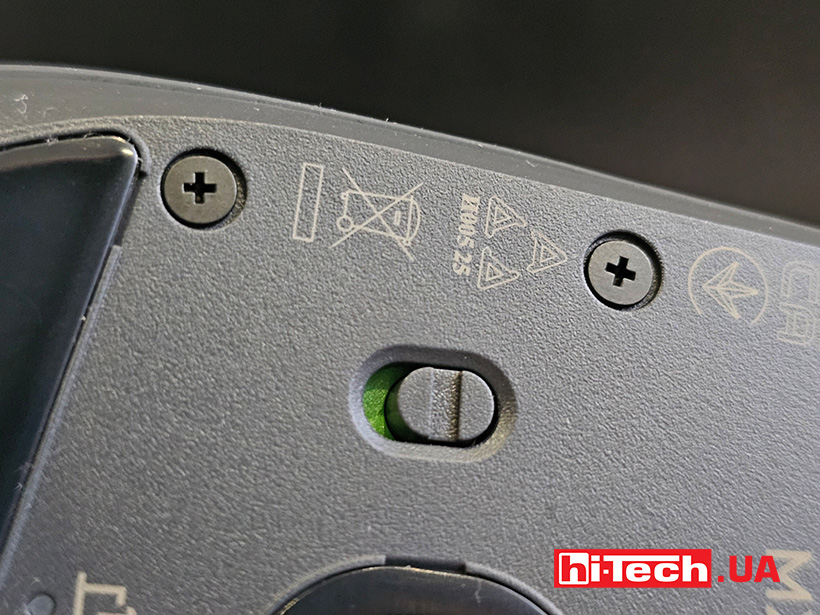
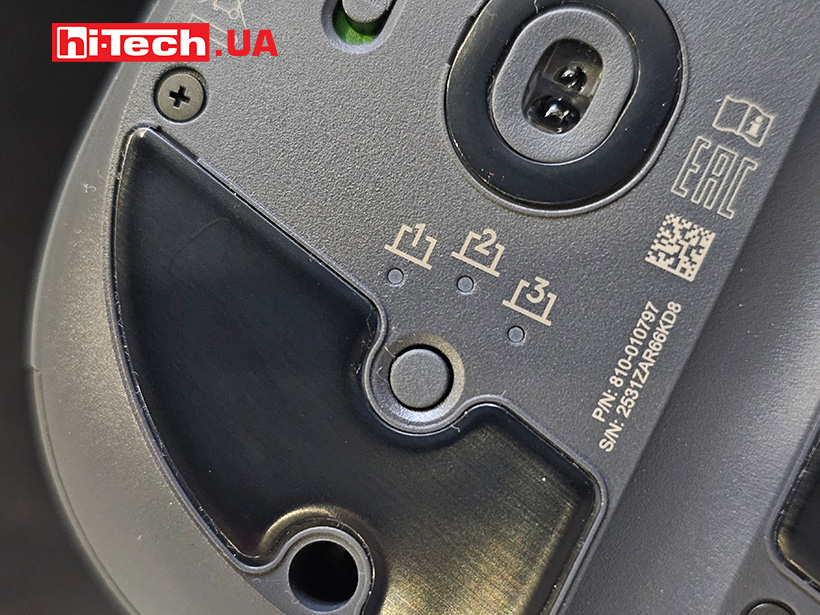
The base of the mouse, in addition to the Darkfield optical sensor window, features a power slider and a button for switching between the three devices. Teflon pads are installed on the front, back, and side. The mouse glides smoothly across tables and mousepads, and thanks to the improved sensor, it even works well on glass.
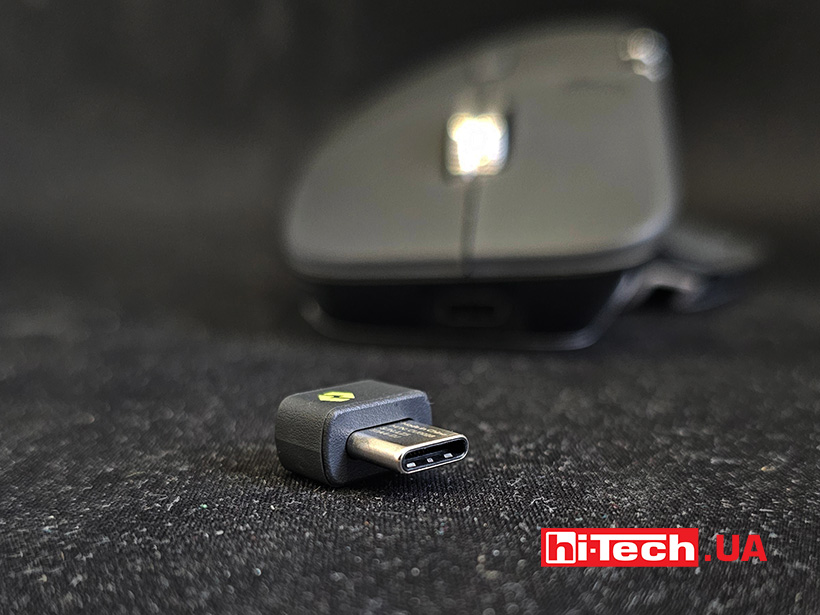
The mouse offers two wireless connection options: Bluetooth or a proprietary USB-C receiver with Logi Bolt connectivity. We didn’t notice any signal interruptions or glitches at distances of up to 10 meters from the PC. The USB Type-C port is located in the front. The receiver itself, with its USB-C connector, is very small. If you plan to use the mouse on the road or in both the home and office, for example, it’s best to select different connection types for each location or maintain separate connections for these multiple devices. There’s no way to hide the receiver inside the mouse. We suspect it’s easy to lose and difficult to find a reasonably priced replacement. It’s much better to keep it permanently in a single USB port.
Ergonomics
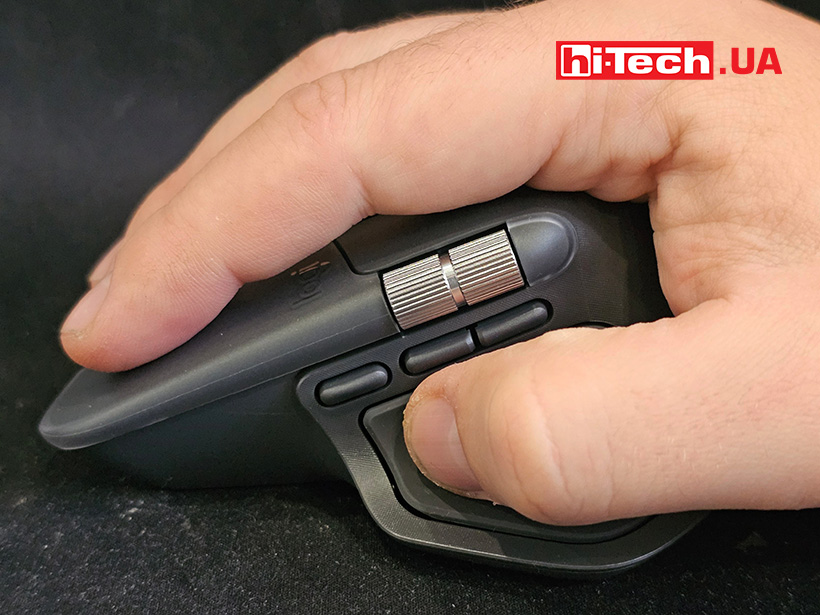
The mouse is most comfortable with a full, full-hand grip. This allows your thumb to comfortably reach the additional keys and the second scroll wheel. The mouse is heavy, and lifting it off the desk is difficult not only due to its weight but also its shape. The abundance of buttons and the lack of grips make it difficult to simply pick it up and move it around on the desk. One of the buttons is sure to be pressed. The side scroll wheel, if not the right button, will “break” your zoom.
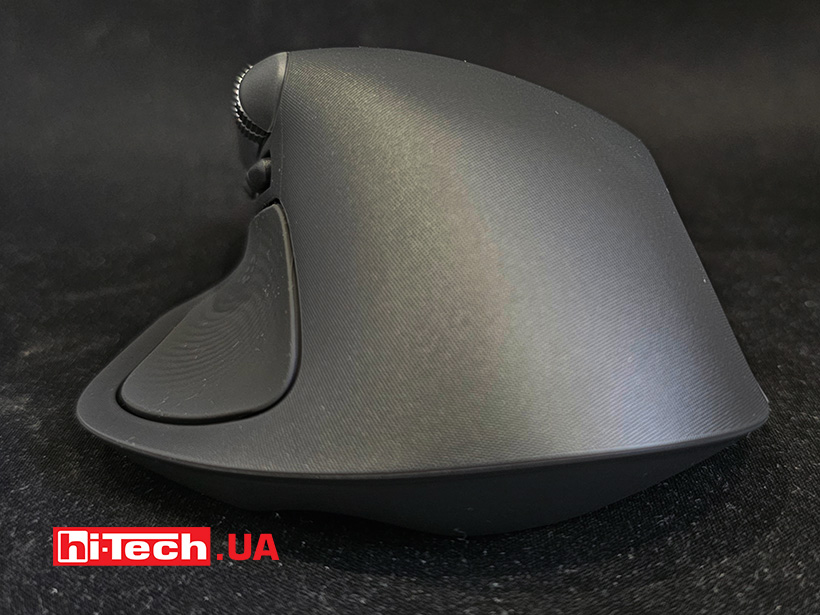
The ergonomics and all these functional features are claimed to reduce hand movements. It’s been literally calculated that executing commands with the Action Ring reduces the number of repetitive movements by 63%, which in turn saves 33% of the time it would take to execute the same commands with a traditional mouse. Creating a text document, taking a screenshot, opening the special characters panel, launching an AI assistant—all of this can be done a little faster and easier.
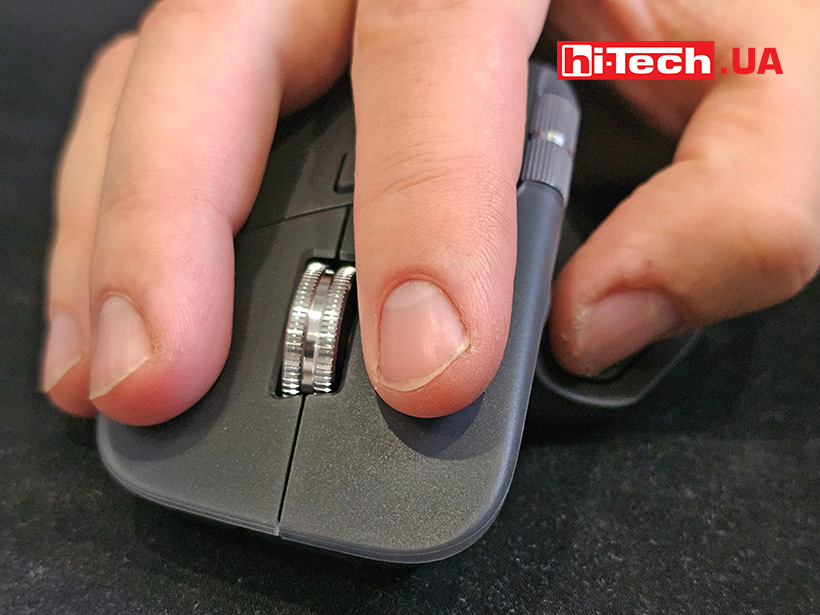
All the buttons are quite quiet. We’d say they’re almost silent. This is a great feature when working near a sleeping child or coworkers in the office who don’t like loud noises. The main wheel rotates completely silently. You can tell that the scroll wheel is working only by the on-screen or visual feedback.
It’s no joke, but even a company’s system administrator can monitor mouse performance. Using the Logi Tune utility, you can track devices remotely via the Logitech Sync platform.
Impressions
The Logitech MX Master 4 is undoubtedly an innovative product. This isn’t a run-of-the-mill update that adds a different stripe to the case, changes the button shape, or redesigns the proprietary software interface. With each new generation, Logitech adds something new to the MX Master line. Incidentally, the first model was released ten years ago, in 2015. The line now has five models, not four, as the MX Master 3 was later renamed the MX Master 3S.
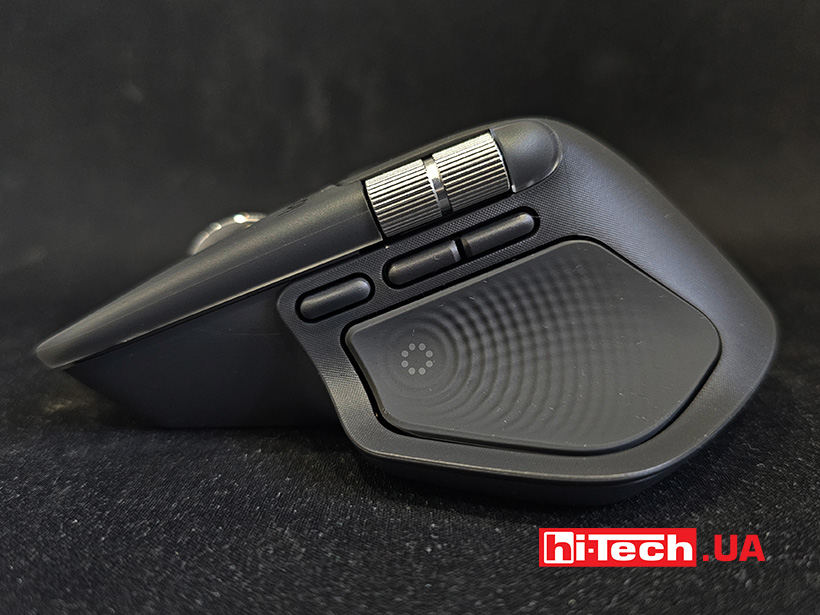
Despite this, the Logitech MX Master 4 managed to surprise with the number of features its additional buttons offer. Two scrolling buttons already look promising for photo and video editing, and wide tables are much more convenient to scroll through with the ability to scroll sideways.
Not to mention the ability to launch some contextual commands with two clicks instead of three. Yes, taking a screenshot, launching Copilot, or creating a text file with just two clicks might seem like a far-fetched advantage to some. But with the MX Master 4, you no longer need to minimize the current window; a new file will open automatically, for example. Media editing professionals will surely find scenarios that are impossible with other mice.







Of course, there are some compromises in versatility. We’d call it a “stationary” mouse. It’s comfortable in one workspace on a cozy, high-quality mouse pad. It can get scratched if carried in a bag without a case. You could lose the receiver too if you don’t use the Bluetooth connection. But as far as classic features go, it’s a high-end product. Considering the current economic climate, it’s not as expensive as the first MX Masters were back in the day. The overheated electronics market has taught us to pay for quality devices. And the Logitech MX Master 4 is exactly that – cutting-edge and cool.

Logitech MX Master 4 Mouse Specifications
| Number of buttons: | 8+2 wheels |
| Sensor: | Darkfield |
| Resolution: | 200-8000 DPI, 50 DPI increments |
| Connectivity: | Logi Bolt (proprietary 2.4 GHz), Bluetooth LE |
| Battery: | Li-Pol 500 mAh, fast charging 1 minute – 3 hours of operation |
| Compatibility: | Windows, macOS, ChromeOS, Linux, iPadOS 15+, Android 12+ |
| Wired interface: | USB Type-C |
| Dimensions: | 50.8 x 88.4 x 128.2 mm |
| Weight: | 150 g |
| Price: | 5599 UAH |
Rating:
+ Ergonomic case
+ Nearly silent buttons
+ Clear key click
- Nowhere Hide receiver
- The wheel only works in “inertial scrolling” mode.


Don't miss interesting news
Subscribe to our channels and read announcements of high-tech news, tes





Oppo A6 Pro smartphone review: ambitious

 0
0 
Creating new mid-range smartphones is no easy task. Manufacturers have to balance performance, camera capabilities, displays, and the overall cost impact of each component. How the new Oppo A6 Pro balances these factors is discussed in our review.
Logitech G G325 headphones review: reliable and long-lasting
0 
Logitech G has released a new gaming headset that offers good ergonomics, stable connectivity, and high battery life at a very affordable price. Let’s talk about the Logitech G G325 in more detail
Enthusiasts have found a way to use YouTube as cloud storage for any files YouTube

A project has appeared on the GitHub platform that offers a way to store files on YouTube as videos without losing data. The development, called yt-media-storage, actually turns video hosting into storage, using the features of processing and uploading content to the service.
Norwegian electronics store will give GTA 6 to those who give birth on the day the game is released games GTA

Norwegian electronics retailer Komplett has announced an unusual promotion dedicated to the release of Grand Theft Auto VI. The company has promised to give a free copy of the game to all families whose children are born on the official release date – November 19, 2026.